
 Benefits: Arrears
 Benefits: Arrears
Overview
If an employee does not earn enough after taxes to pay all his share of his benefits on a particular pay what happens? You ignore it (and maybe let the company pay it), or you can track the amount as an amount owed to be repaid in future pay periods.
Amounts owed on benefits are called Arrears, and can managed by the Umana benefit arrears option.
Arrears are handled on each benefit separately. Arrears balances and payroll paybacks are by plan.
To track arrears for a particular benefit, check the option Track Arrears on the benefit PLAN pay tab.
See below
- Net pay: How the net pay calculates and tracks arrears
- Arrears payback : When the employee returns to work
- Adjusting arrear balances
- General Ledger implications
Net Pay
The Umana net pay first takes the employee's earning, applies statutory deductions (taxes, EI, CPP, ...), and then takes benefit deductions.
Benefit deductions are applied in order as specified in priority order (specified on the PAY tab of the benefit plan).
When there is no more net left, it either ignores (when not tracking arrears) the employee's unpaid benefit amounts, or increases the arrears due (when tracking arrears) due by that employee for that benefit.
When the employee is back full time earning a normal amount, Umana applies some of his current pay to pay off past arrears. Arrears are only paid back after all other current deductions have been made.
Calculate your pay periods in order
If you have Umana manage arrears, it is important to calculate the pay periods for employees in ascending order (by period number)
For example, do not calculate 202607A for an employee before calculating 202607. Do not calculate 202607A after running pay 202608.
WHY? Because arrears balances are stored in the payroll record (PAYDT table in the database), so Umana looks at the employee's previous period record for arrears opening balances.
Statutory deductions don't work that way. Their YTD totals are not stored in the data base, but calculated dynamically. So this problem only arises with benefit arrears.
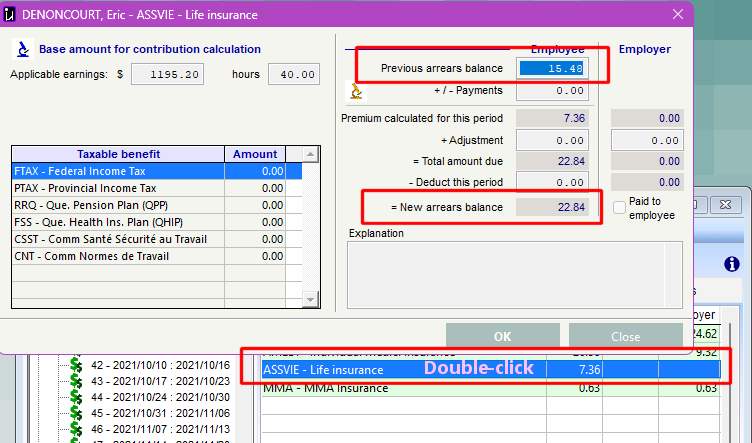
Viewing arrears on the net pay window
This shows you the detail for one pay period
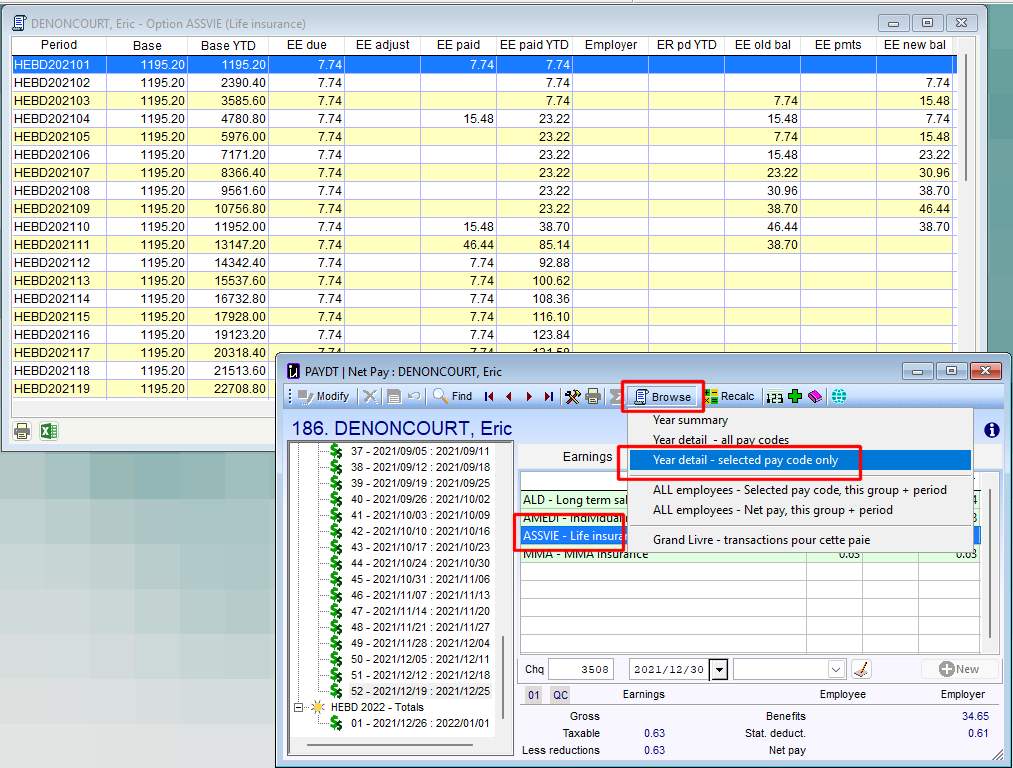
You can also look at the history for the year of a selected benefit. It shows you the amount due (calculated) for the each period, the amount paid, and the before and after arrears balance.
Arrears Payback
If the employee has a large arrears balance, perhaps after a long absence, you won't want to grab it all back at once.
One common rule is to have the employee's payback amount = his regular premium amount. So effectively he pays double what he normally would: once for the current period premium and once again for the payback. So if he missed paying his premium for 3 months it would take him 3 months to catch up.
As a Umana administrator you can control that globally and individually with :
- A pay-by-pay payback plan for a specific employee and benefit, or
- A payback rule for a specific employee and benefit, or
- A payback for this particular benefit (plan)
- A general global rule, when nothing else applies.
1. Pay-by-pay plan for an employee and benefit
Simply enter benefit transactions in the gross pay (attendance detail, TIMEDT table). Use the apply to EPEPREM option. The amount adds or subtract from his normal premium, so it will automatically apply to the arrears.
You can post-date transactions (to be applied in future pay periods) — effectively setting up an entire payment plan.
And yes, and employee can pre-pay a benefit (so his arrears are negative) if he is expecting to go on leave in the future.
You can create a series of payback transactions with future dates for an employee and benefit.
If the net pay applies a EPEPREM amount for a given pay period, it uses it and ignores any other payback rules.
2. Payback rule (expression) for the EMPLOYEE and benefit
You can enter a payback expression on the employee benefit record to control how much should be take back from his arrears owning on each pay. If you do so, it will apply when there is no individual payment plan.
It is OK if the amount is greater than his arrears balance. Umana will automatically stop paying back arrears once they are fully paid.
The expressions you can use here are the same in #4 below
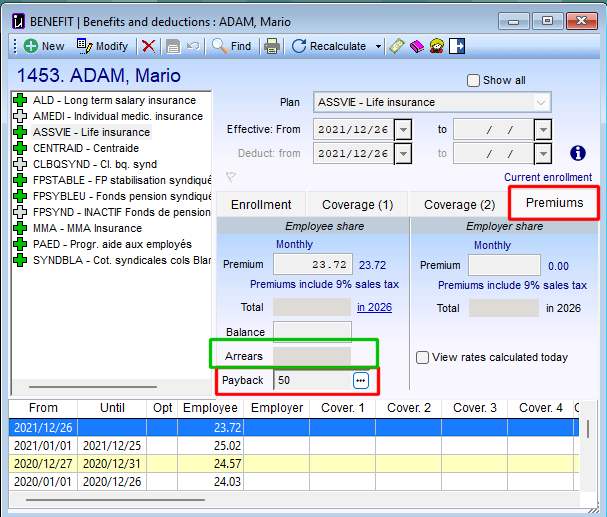
3. Payback rule for the PLAN
You can enter a payback expression for the benefit plan. If you do so, it will apply to this rule for all employees enrolled, who don't have an override rule is their benefit record
- The expressions you can use here are the same in #4 below
4. Default payback rule in Administration > Options
This rule (expression) is used for paying back arrears if no other rule (above) is applies.
To get here go to Left-menu-bar > Administration > Options > Net pay > Benefits
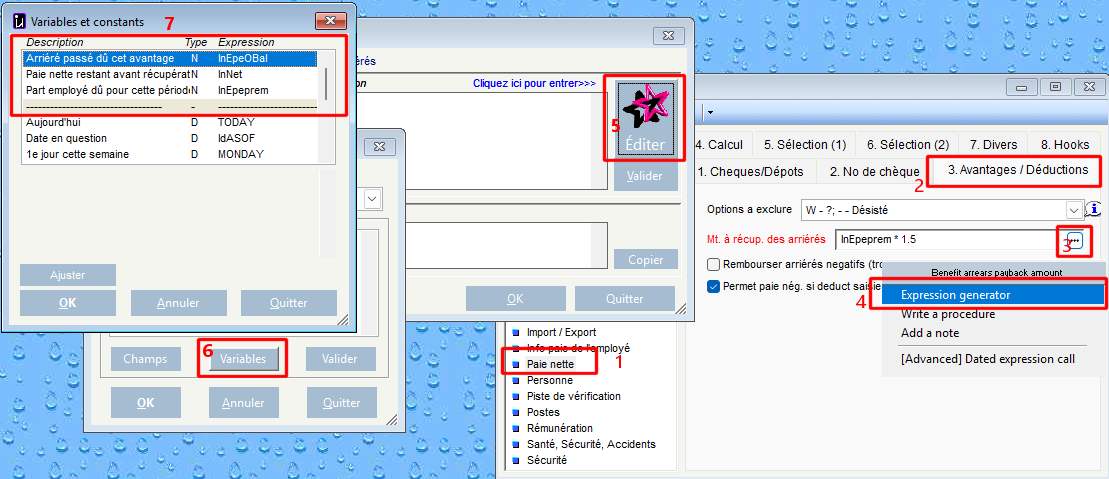
- Expressions are very powerful in Umana. The one you need here is actually very simple. Use constants and the 3 variables below. They are updated dynamically as the pay is calculated and the payroll engine works through different benefits.
| Variable | Contains |
|---|---|
| LnEpePrem | Regular premium due pay period (excl arrears) |
| LnEpeOBal | Old arrears balance from the previous pay period |
| LnNet | Net pay remaining (available) |
Examples:
- LnEpePrem * 2 makes the payback = twice the regular premium for the current period. (So total deduction = 3 x his regular premium.)
(100 - LnEpePrem) makes the total deduction of $100, including the premium due for the current period and the payback.
min(100, LoEpeOBal * .10) pays back 10% of the outstanding balance, up to a maximum of $100.
Here is how you can use the expression generator for that.
Adjusting Arrears
You might want to change an employee's arrears balance. Maybe...
- You want to write it off
- The employee is on LTD and brought a cheque to account dept to pay his insurance.
- Whatever
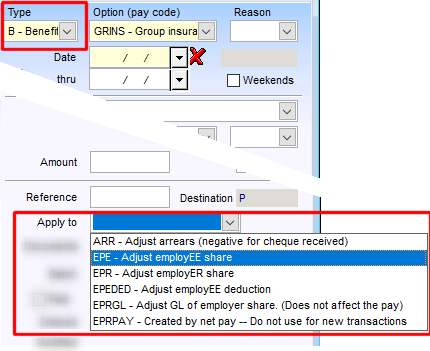
To do so, simply create a gross pay transaction (attendance detail) of type: BENEFIT and Apply to: ARR: Adjust arrears. The amount entered is added to the employee's arrears balance. This is similar to the image in #2 above.
General Ledger (G/L)
From an accounting point of view, arrears due from an employee are an ASSET. So you need to tell Umana which asset account (on the balance sheet) to debit or credit when the employee's arrears balance changes. This is used by the G/L export process.
You specify the arrears asset account in the BENEFIT PLAN window, in the PAY tab, labeled G/L ACCOUNTS.
In this field you can put up to 3 different G/L accounts, separated by commas. They are:
- The Liabilities account to be credited. This is money which to be remitted to the carrier.
- The Expense account to be debited, with the employer share amount
- The Arrears account to be debited when the employee's debt increases. It's a receivable for the employer.
If you use the same ARREARS account for all benefits, you can specify it in the GL export program instead of putting it into all benefit plans.
© Carver Technologies, 2026 • Updated: 10/31/26